Features · On your phone
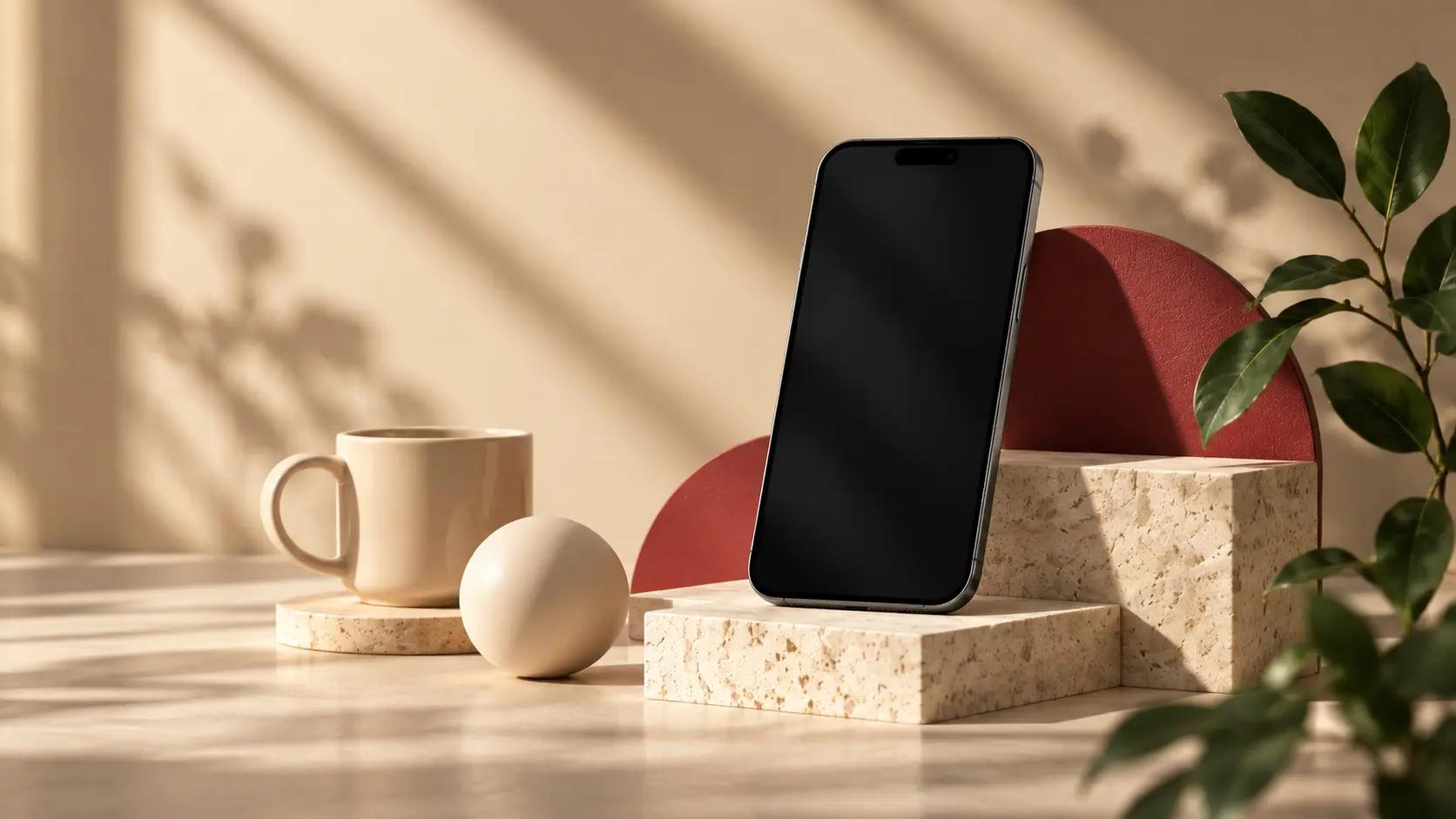
Your wishlist, right on your home screen.
Add Wishpicks to your home screen and open it like any other app. No app store needed.
- Free
- No app store
- iPhone, Android and desktop
Wishpicks
wishpicks.com
Installing
How to install
Select your browser to see step-by-step instructions.
Open in Safari
Go to wishpicks.com in Safari.
Tap Share
Tap the Share button (square with an arrow) at the bottom of the screen.
Add to Home Screen
Scroll down and tap "Add to Home Screen".
Done
Tap "Add". Wishpicks now appears on your home screen.
Benefits
Why install Wishpicks?
It opens like an app, without the app store.
One tap to open
Open Wishpicks from your home screen instead of searching for it in the browser.
Always up to date
There is nothing to update. You get the latest version every time you open it.
No browser bars
Wishpicks opens in its own window, so your wishlists get the whole screen.
Almost no storage
The icon is a shortcut to the website, so nothing large is stored on your device.
Common questions
About installing
Still unsure? Write to us
- Is installing Wishpicks free?
- Yes. There's nothing to buy, and no app store is involved. You add a shortcut to Wishpicks on your home screen, and it opens in its own window like an app.
- Does it take up storage space?
- Almost none. Wishpicks runs from the web, so the home screen icon is a shortcut, not a download.
- Which browsers support this?
- Safari on iPhone/iPad, Chrome and Samsung Internet on Android, Chrome on desktop, and Safari on Mac all support adding Wishpicks to your home screen or dock.
- Will I get notifications?
- Not push notifications. Wishpicks sends email, and price drop alerts are off until you turn them on in notification settings.